Chapter 35: Interactive Help
Many RISC OS users will be familiar with the Interactive Help system, provided by the built-in Help application and a number of other third-party alternatives. With a suitable application loaded, moving the mouse around the desktop will reveal information about the things under the pointer. Some of the details provided by the Filer can be seen in Figure 35.1.
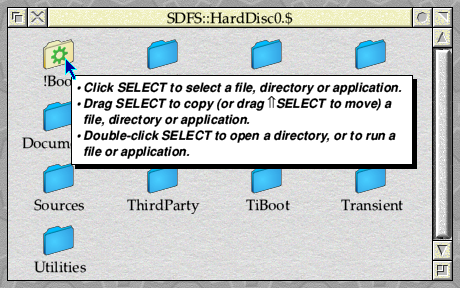
Figure 35.1: The Filer can provide interactive help to the user
Since Help is just another application, the interactive help system is implemented through user messages. This has a side benefit that any applications which may want to provide an alternative to Help can simply send the same messages out, and other applications on the system will not need to know the difference. Unlike the purely informational messages that we have met so far, however, the messages from Help will be asking us for information and our application will need to be able to respond to them.
Requests for help
In order to provide interactive help to users, Help tracks the position of the mouse pointer on the screen and it will send a Message_HelpRequest to the owner of the object at the pointer several times every second. If the recipient can supply help for that object, it should do so by sending back a Message_HelpReply in response. This is a good example of why it is wise for applications to request only the messages that they are interested in through Wimp_Poll and Wimp_AddMessages: up to this point our application has been saving itself from receiving approximately ten messages every second that it hasn’t had a use for, not to mention the saving on system overhead by not being paged in and out of memory each time!
We now want to receive those messages, however, so to add support for interactive help to our application we will need to add some code to listen out for Message_HelpRequest and respond in the correct way. We will put this into a new code module formed of a pair of new c.inthlp and h.inthlp files, so we start by adding these to the list of objects in the Makefile in a way that should be familiar.
OBJS = calc main menu inthlp ibar win results
For now, all that we need to do is to initialise the new code module from within main_initialise(), so we define an interface for this in c.inthlp as seen in Listing 35.1.
 /**
 * Example 35.1
 *
 * (c) Stephen Fryatt, 2026
 *
 * File: inthlp.h
 */

#ifndef EXAMPLEAPP_INTHLP
#define EXAMPLEAPP_INTHLP

/* Interactive Help Initialisation. */

void inthlp_initialise(void);

#endif
Listing 35.1 (h.inthlp): The header file to define the interactive help module’s interface
We can then add a call to this function from within main_initialise() in c.main as seen in Listing 35.2.
/* Initialise the program modules. */

calc_initialise();
inthlp_initialise();
ibar_initialise(main_application_sprite);
win_initialise(sprites);
results_initialise();
Listing 35.2: Initialising the interactive help module
All that we need to do in c.inthlp is create a handler for Message_HelpRequest. OSLib defines the message structures relating to the interactive help protocol in the oslib/help.h header, and those for Message_HelpRequest are as follows:
struct help_message_request {
        os_coord                pos;
        wimp_mouse_state        buttons;
        wimp_w                  w;
        wimp_i                  i;
};

struct help_full_message_request {
        wimp_MESSAGE_HEADER_MEMBERS
        os_coord                pos;
        wimp_mouse_state        buttons;
        wimp_w                  w;
        wimp_i                  i;
};
The message payload is effectively the information returned by the Mouse_Click event or from the Wimp_GetPointerInfo SWI, with the screen coordinates of the pointer in pos and the button state in buttons. If the pointer is over a window and icon, their handles will be in w and i respectively; otherwise, these members will contain −1 (or wimp_BACKGROUND and wimp_ICON_WINDOW).
To return a help message, our application should respond to each incoming Message_HelpRequest with a Message_HelpReply, which OSLib defines like this:
struct help_message_reply {
        char reply[236];
};

struct help_full_message_reply {
        wimp_MESSAGE_HEADER_MEMBERS
        char reply[236];
};
All of the available 236 bytes are used for the help message, in the form of reply[]. After including a string terminator, this allows messages of up to 235 characters in length – although there are some escape sequences defined which expand into longer pieces of text, which we will look at shortly.
Our application will need to listen for incoming Message_HelpRequest, decode the contents, turn that into a suitable help message and then reply with a Message_HelpReply. For now, however, let’s just get it to respond with a generic message. To that end, we can define our handler for Message_HelpRequest in the form of the inthlp_send_reply_help_request() function as seen in Listing 35.3.
/* Message_HelpRequest event handler. */

static osbool inthlp_send_reply_help_request(wimp_message *message)
{
        help_full_message_request *help_request = (help_full_message_request *) message;
        help_full_message_reply help_reply;

        msgs_lookup("HelpMessage", help_reply.reply, 236);

        help_reply.size = WORDALIGN(21 + strlen(help_reply.reply));
        help_reply.your_ref = help_request->my_ref;
        help_reply.action = message_HELP_REPLY;

        os_error *error = xwimp_send_message(wimp_USER_MESSAGE, (wimp_message *) &help_reply, help_request->sender);
        if (error != NULL)
                error_report_os_error(error, wimp_ERROR_BOX_CANCEL_ICON);

        return TRUE;
}
Listing 35.3: The handler for Message_HelpRequest
We begin by casting the incoming pointer to the wimp_message structure into a pointer to a help_full_message_request structure, so that we can access the message contents. We also define the help_reply variable, to claim some space from the stack in which we can build up the Message_HelpReply that we will be sending back as a response.
With the two message variables set up, we start to reply by using MessageTrans to look up the “HelpMessage” token and write the corresponding message text into the 236 bytes of space within the Message_HelpReply block that is pointed to by help_reply.reply. The size member should hold the total length of the message block, so we calculate this by taking 20 bytes for the header fields, adding a byte for the string terminator to get 21, then adding on the number of bytes in the string. The user message protocol expects the size to be rounded up to the nearest multiple of four bytes, so we make use of the WORDALIGN() macro that is defined in SFLib’s general library to do this for us.
/* Round the given block size to the next full word. */

#define WORDALIGN(x) ( (x + 3) & ~3 )
Whenever a user message is sent, the Wimp allocates it a unique reference number which will go into my_ref. This is done automatically by Wimp_SendMessage, so there is no need for our application to fill in this member of the wimp_message structure: it will have been updated by the time the message reaches the recipient. However, when we reply to a message, the your_ref field of the reply should contain the my_ref from the original message. We therefore copy this value across from the incoming message block.
The Wimp will also put our task handle into the sender field for us, so again there is no need to do this ourselves. We do, however, need to remember to set the action field to message_HELP_REPLY so that when the message arrives at the other end, the recipient knows what it is about.
With the help_reply structure complete, we are ready to send the message to Help, which we do by calling Wimp_SendMessage. OSLib defines this as follows:
extern os_error *xwimp_send_message(
        wimp_event_no   event,
        wimp_message    *message,
        wimp_t          to
);
The event parameter indicates the Wimp_Poll reason code that we want the recipient to receive. This will be one of the three user message codes, and since we are not expecting a reply (indeed, Message_HelpReply is not documented as being replied to), we send it as the simple un-recorded User_Message. The *message parameter takes a pointer to the message block that we wish to send, and to takes the task handle of the intended recipient – in effect the address of the message. We are replying to a message sent to us, so we can get the task handle that we need from the sender field of the incoming message.
There isn’t much that we can do if Wimp_SendMessage fails, but since it involves many things outside of our control we check the returned error pointer and report any issue to the user. The handler then returns TRUE, to let SFLib’s event library know that we have dealt with the message and there is no point letting any other parts of our application know about it – we know that there are no other things within our application which will be claiming Message_HelpRequest, but it’s still good practice to do the right thing.
With the inthlp_send_reply_help_request() function defined, we can register it from within inthlp_initialise() as shown in Listing 35.4.
/* Interactive Help Initialisation. */

void inthlp_initialise(void)
{
        event_add_message_handler(message_HELP_REQUEST, EVENT_MESSAGE_INCOMING, inthlp_send_reply_help_request);
}
Listing 35.4: Initialising the interactive help code
All that remains is to add a suitable message to our Messages file, as shown in Listing 35.5.
# Interactive Help

HelpMessage:This is an example help message from an Example application!
Listing 35.5: Adding a help message to Messages
With this code in place, our application should be able to respond to requests for interactive help from Help or any other suitable application. Pointing to either of the windows or the iconbar icon should reveal the message seen in Figure 35.2.
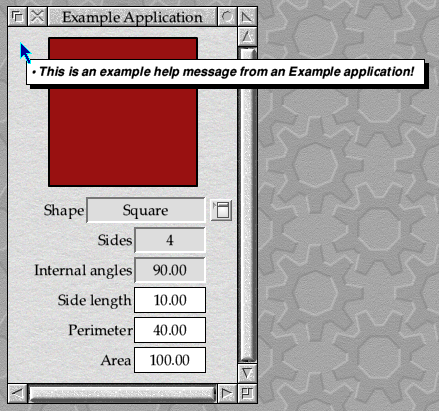
Figure 35.2: The 'Hello World' of the interactive help world
The full set of code can be found in Download 35.1. As with any new section of the application, there is a fair bit of boilerplate code required to get the new c.inthlp and h.inthlp files into the codebase – if any of it seems new or surprising, it’s worth going back through the earlier parts of this tutorial to understand how they work before we move on.

Being more helpful
Whilst our application responds to requests for help messages, it isn’t a lot of use because we only have one message – and even that isn’t very helpful! Message_HelpRequest contains the current position of the pointer and the handles of the window and icon that are underneath it, so we could use this information to narrow things down a bit. Simplistically, we could just use some giant, nested switch () statements – but we can probably do better.
There are many possible solutions, but since we have use of MessageTrans to look up help messages, it would make sense to build up some hierarchical message tokens. We could start each token with the word “Help”, follow it with a dot as a separator for clarity, then the name of the target window. The dot means nothing to MessageTrans, and is there purely for our benefit.
# Interactive Help

Help.IconBar:This is the Example application.
Help.Main:This is the main Example window.
Help.Info:This window gives information about Example.
Help.Results:This is the Example results window.
If we can then find a way to convert the window handle in the incoming Message_HelpRequest into the appropriate window name, we could build up the complete message token for each help message and use use MessageTrans to look it up. Since the code in c.inthlp doesn’t know anything about the window handles in the other parts of the application, we will need a way for those window handles to be given to and stored by it. We therefore start by creating the simple linked-list data structure in Listing 35.6, to hold any information that we might be given.
#define INTHLP_OBJECT_NAME_LENGTH 16

/* Target Window Data Structure. */

struct inthlp_window {
        wimp_w                  window;
        char                    name[INTHLP_OBJECT_NAME_LENGTH];

        struct inthlp_window    *next;
};

/* Global Variables. */

static struct inthlp_window *inthlp_windows = NULL;
Listing 35.6: The data structure to store window details
The inthlp_window structure contains space for a window handle in window and a name to use for the associated MessageTrans token in name[]. The *next pointer will allow us to link to the next item in the list, and the global *inthlp_windows variable will point to the head of the list.
We will provide an inthlp_add_window() function to allow the clients to add their windows to the list that we know about: it takes a window handle in the window parameter, and a token name in the *name parameter. The definition is in Listing 35.7.
* Add a new window handle and name. */

void inthlp_add_window(wimp_w window, char *name)
{
        if (inthlp_find_window(window) != NULL)
                return;

        struct inthlp_window *new = malloc(sizeof(struct inthlp_window));

        if (new == NULL)
                return;

        new->window = window;
        string_copy(new->name, name, INTHLP_OBJECT_NAME_LENGTH);

        new->next = inthlp_windows;
        inthlp_windows = new;
}
Listing 35.7: Add new window details to the list
The first thing that the function does is check to see if the window handle is already in the list: if it is, it just returns. If the window isn’t known, memory is claimed for a new item in the list, the inthlp_window structure is filled in, and the new entry linked in at the head of the list.
Finding windows by their window handles is done using the inthlp_find_window() function in Listing 35.8. This takes a window handle in window and searches the linked list; if a match is found, a pointer to the list entry is returned.
/* Find a window definition by window handle. */

static struct inthlp_window *inthlp_find_window(wimp_w window)
{
        struct inthlp_window *list = inthlp_windows;

        while (list != NULL && list->window != window)
                list = list->next;

        return list;
}
Listing 35.8: Finding window details in the list
With a linked list of windows in place, we will also need to be able to look up the window handles which arrive in Message_HelpRequest and convert them into message tokens. To do this, we create a new inthlp_lookup_help_text() function as seen in Listing 35.9. This takes a pointer to a buffer to hold a help message in *buffer and its length in length. The window handle is passed in window. The function will return TRUE if a message is found, or FALSE otherwise.
#define INTHLP_MESSAGE_TOKEN_LENGTH 128

/* Look up a help text. */

static osbool inthlp_lookup_help_text(char *buffer, size_t length, wimp_w window)
{
        if (buffer == NULL || length == 0)
                return FALSE;

        struct inthlp_window *window_data = NULL;
        char token[INTHLP_MESSAGE_TOKEN_LENGTH];

        if (window == wimp_ICON_BAR) {
                if (msgs_lookup_result("Help.IconBar", buffer, length))
                        return TRUE;
        } else if ((window_data = inthlp_find_window(window)) != NULL) {
                string_printf(token, INTHLP_MESSAGE_TOKEN_LENGTH, "Help.%s", window_data->name);
                if (msgs_lookup_result(token, buffer, length))
                        return TRUE;
        }

        *buffer = '\0';

        return FALSE;
}
Listing 35.9: Convert window handles to message tokens
After checking that a valid buffer pointer was supplied, the function starts to search for a suitable help message. If the supplied window handle was the iconbar, a special case is employed which simply looks up the “Help.IconBar” token and stores the result in the supplied buffer. This means that the code in c.ibar doesn’t need to register a name for the iconbar icon itself (although it does need to register a handle and name for the program information window.
In all other cases, the window handle is looked up in the linked list and if a match is found, the name associated with the handle in the list is appended to “Help.” to get a message token. This token is again looked up, and the result stored in the supplied buffer.
If either of the lookup attempts was successful, the function will return TRUE. Otherwise, it will safely terminate the buffer and return FALSE.
With this code in place, we can now update inthlp_send_reply_help_request() to call inthlp_lookup_help_text() instead of going directly to MessageTrans. An if () statement is added so that should no message be found, the function will simply return without sending Message_HelpReply or claiming the event from SFLib.
static osbool inthlp_send_reply_help_request(wimp_message *message)
{
        help_full_message_request       *help_request = (help_full_message_request *) message;
        help_full_message_reply         help_reply;

        if (inthlp_lookup_help_text(help_reply.reply, 236, help_request->w) == FALSE)
                return FALSE;

        help_reply.size = WORDALIGN(21 + strlen(help_reply.reply));
        help_reply.your_ref = help_request->my_ref;
        help_reply.action = message_HELP_REPLY;

        os_error *error = xwimp_send_message(wimp_USER_MESSAGE, (wimp_message *) &help_reply, help_request->sender);
        if (error != NULL)
                error_report_os_error(error, wimp_ERROR_BOX_CANCEL_ICON);

        return TRUE;
}
All that remains for us to do is to register the window names for each of the three windows in the application using the new inthlp_add_window() function. We can do this within ibar_initialise() in c.ibar...
/* Program Info Window. */

window_definition = windows_load_template("ProgInfo");
if (window_definition == NULL) {
        error_msgs_report_error("BadInfoTempl");
        return;
}

prog_info = wimp_create_window(window_definition);
free(window_definition);

inthlp_add_window(prog_info, "Info");
event_add_window_icon_click(prog_info, IBAR_PROGINFO_ICON_WEB, ibar_proginfo_web_click);
...win_initialise() in c.win...
/* Register event handlers. */

inthlp_add_window(win_handle, "Main");
event_add_window_key_event(win_handle, win_keypress);
event_add_window_menu(win_handle, win_menu);
event_add_window_menu_prepare(win_handle, win_set_menu);
event_add_window_menu_selection(win_handle, win_menu_selection);
event_add_window_icon_popup(win_handle, WIN_ICON_SHAPE_POPUP, win_shape_menu, WIN_ICON_SHAPE_FIELD, NULL);
event_set_window_icon_popup_action(win_handle, WIN_ICON_SHAPE_POPUP, FALSE, win_shape_menu_selection);
...and results_initialise() in c.results.
/* Register event handlers. */

inthlp_add_window(results_handle, "Results");
event_add_window_redraw_event(results_handle, results_redraw);
event_add_window_menu(results_handle, results_menu);
event_add_window_menu_prepare(results_handle, results_set_menu);
event_add_window_menu_selection(results_handle, results_menu_selection);
If we build and run the application now, we should find that we have a different interactive help message for each of the windows and the iconbar icon. If we hover the pointer over our iconbar icon, for example, we get the message seen in Figure 35.3.
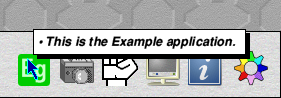
Figure 35.3: A slightly more specific message
The code so far can be found in Download 35.2.
The help message format
Before we move on to improve the targetting of our messages any further, we should take a closer look at the way that we have written the help messages in our Messages file. Message_HelpReply is happy with up to 235 characters of plain text (allowing space for a terminating '\0'), but there is a bit more that we can do with it.
First, if you look around the desktop with Help active, you will notice that a lot of messages use multiple lines – this is particularly noticeable when the individual lines are bulleted, as they are in many help clients. We can do this by inserting a |M sequence in the text: this takes two precious characters, but inserts a newline into the message. Inserting a normal newline character (either '\r' or '\n') into the text won’t work, because any control character is taken to be the end of the text; a number of applications out in the wild make use of this feature, so it can’t be changed.
If we wanted to do a more standard explanation for our iconbar icon, we could write something like this.
# Interactive Help

Help.IconBar:This is the Example application, a demonstration of Wimp development in C.|MClick SELECT to open the Shape window.|MClick ADJUST to open the Results window.
Help.Main:This is the main Example window.
Help.Info:This window gives information about Example.
Help.Results:This is the Example results window.
If we run the application now, we will find that our iconbar icon has a more conventional help message: describing the application and listing the main actions available from the icon (with space being at a premium, it is assumed that the user knows how to click Menu over the icon to access the iconbar menu – where they should find more helpful guidance). The new message can be seen in Figure 35.4.
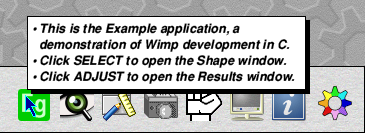
Figure 35.4: Splitting the text on to more than one line
There is another small optimisation that we can do, however. The help protocol includes a number of ‘tokens’ which can be included to shorten standard words and phrases. Many of these are for internal use by parts of the OS and change between RISC OS versions, but there are a few that are standard and therefore usable by applications like ours. All of them start with a backslash and are followed by a case-sensitive character. The full set can be found in Table 35.1 – note that with the exception of \w, \s and \a, all of the expanded texts have a trailing space appended.
| Token | Text |
|---|---|
| \S | Click SELECT to |
| \R | Move the pointer right to |
| \A | Click ADJUST to |
| \T | This is the |
| \G | This option is greyed out because |
| \W | This window is |
| \D | Drag SELECT to |
| \d | Drag ADJUST to |
| \w | window |
| \s | SELECT |
| \a | ADJUST |
Table 35.1: The standard interactive help message tokens
If we make use of these in our help messages, we can trim down the length of the individual lines of text quite a lot.
# Interactive Help

Help.IconBar:\TExample application, a demonstration of Wimp development in C.|M\Sopen the Shape window.|M\Aopen the Results window.
Help.Main:\Tmain Example \w.
Help.Info:This \w gives information about Example.
Help.Results:\TExample results \w.
You can see how we are using the trailing spaces that are present in some of the expanded texts. Also note that the standard forms don’t always work for the messages that we need: the entry for the program information window is a good example.
There are a couple of things that are worth pointing out here. The first is if you should find a need to include a backslash in a help message, this can be done by inserting a pair of backslashes.
The second doesn’t apply to us, as we are holding our messages in a Messages file and so they never go near any literal strings that the compiler will have to process. However, if you find yourself writing help messages in C literal strings then you will need to escape the backslashes themselves for the benefit of the compiler. Thus the C literal "\\Tmain Example \\w." would give us the message that is contained in the “Help.Main” token above. This can very quickly get confusing and is, in itself, a good reason for using MessageTrans to handle our application’s text!.
The only change to the application is in its Messages file, but the full code can be found in Download 35.3.
Identifying the icons
Our application is now able to differentiate between its various windows when responding to requests for interactive help messages, but to actually be useful it will need to narrow that down to the individual icons within a window. A user will expect to be able to point to the different parts of a window in order to get assistance with them, but as it stands we can not do that.
To continue with the approach that we are using, we will need to find a way to turn the icon handles from Message_HelpRequest into names that we can add to our message tokens. We could take the same approach that we used for the windows and have the different parts of our application give the icons names that we can store, but this could quickly turn into a lot of work for complex windows with lots of icons. There is, however, another possibility: if we look back at Table 15.1, which listed the icon validation string commands, there is one in the table whose action is to “Set Icon Name”.
The N validation command is a bit odd, in that it isn’t actually an official validation command implemented by the Wimp. Instead, it came from a convention by third party developers and template editors such as WinEd, which became prevalent enough to be included amongst the validation commands listed in the Wimp’s source code – ensuring that it is safe for us to use. The command can be followed in the validation string by a piece of arbitrary text, such as “NCancel” – anything which wishes to do so can then treat this text as the icon’s name.
Using the N command, we can give a name to any indirected icon. The requirement for the icon to be indirected may seem like a limitation, but with the advent of 3D windows many of the icons in a standard dialogue will be indirected anyway – if only to allow the use of the R command. The main potential problem comes from sprite-only icons, which don’t have a validation string even when indirected; these are fairly rare, so we can probably find a way around them when they do come up.
The first step is to name our icons, so we start by loading our Templates in to WinEd and updating the validation strings for the icons in the Main window. Figure 35.5 shows how this works: if we add the N command to an icon’s validation string in the usual way and Update the icon, WinEd will show the name in the Icon name field of the Monitor when we hover the mouse pointer over the icon.
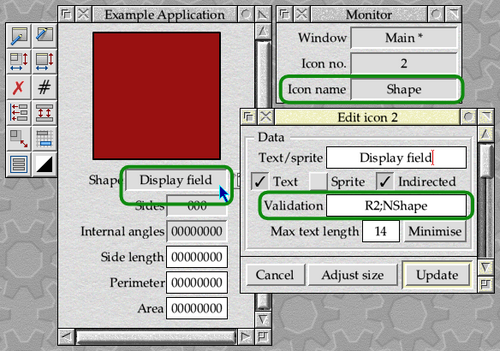
Figure 35.5: Naming an icon in WinEd
We will go through the Templates and add names to all of the ‘active’ icons in the Main window, as well as the Website button in the ProgInfo window. For now, we will leave the Results alone. Have a look at the file inside Download 35.4 to see what has changed.
We can also update the help texts in our Messages file as follows. Continuing with the naming convention that we started above, messages for icons will have a second dot following the window name and then the name of the icon. You should be able to match up the names here with the names in the Templates file! The anomaly is “Help.Main.Icon0” which looks as if it should match up with the sprite icon – this is caused by the lack of validation strings on sprite-only icons that we noted above, and we’ll explain the plan when we update the inthlp_lookup_help_text() function.
# Interactive Help

Help.IconBar:\TExample application, a demonstration of Wimp development in C.|M\Sopen the Shape window.|M\Aopen the Results window.
Help.Main:\Tmain Example \w.|MTo give us some sense of purpose, we can use it to superficially explore shapes.
Help.Main.Icon0:\Tshape that we are working with.|MUse the fields below to investigate its properties.
Help.Main.Shape:\Tcurrently selected shape.|MUse the pop-up menu to change it.
Help.Main.Menu:\Schoose a new shape.
Help.Main.Sides:\Tnumber of sides that the shape has.
Help.Main.Angles:\Tsize of the internal angles of the shape.
Help.Main.Length:\Tlength of a side of the shape.|MType a new value and press Return to update the calculation.
Help.Main.Perimeter:\Tlength of the perimeter of the shape.|MType a new value and press Return to update the calculation.
Help.Main.Area:\Tarea of the shape.|MType a new value and press Return to update the calculation.
Help.Info:This \w gives information about Example.
Help.Info.Website:\Svisit the application's website.
Help.Results:\TExample results \w.
The process for looking up help texts within inthlp_lookup_help_text() will now be a sequential one. We will continue to use the window handle from Message_HelpRequest to find a window name but, before appending that to “Help.” as we were doing before to get a help message for the whole window, we will try to find a more specific message for the icon under the pointer.
The first step is to use the window and icon handles to find a name for the icon. Within its icons library, SFLib has a function called icons_get_validation_command() which is defined as follows.
osbool icons_get_validation_command(
        char    *buffer,
        size_t  length,
        wimp_w  w,
        wimp_i  i,
        char    command
);
It takes a window and icon handle pair in w and i, along with the validation command character of interest in command. If the icon in question exists, is indirected, isn’t sprite-only and has the specified command within its validation string, then the text following the command character is copied into the buffer whose address and length are passed in *buffer and length respectively; the function will then return TRUE. In any other situation, the function will return FALSE to indicate that either the icon wasn’t indirected or the command wasn’t found.
In the updated inthlp_lookup_help_text() function, if icon contains an icon handle then it will start by attempting to get the icon name from the validation string. If this fails, it could be because there was no N command in the validation string or because there was no validation string at all: the icon may not be indirected, or it might be an indirected sprite-only icon. In this case, the function will fall back to using the text “IconN” – where N is the icon handle. This explains that “Help.Main.Icon0” token in our updated Messages file above.
Once an icon name of some form has been obtained, the full help token is looked up in the Messages file. If a match is found, the resulting text is used as the interactive help message; if it fails, we fall back to trying just the window name as before – this can be seen if the pointer is hovered over any of the label texts.
static osbool inthlp_lookup_help_text(char *buffer, size_t length, wimp_w window, wimp_i icon)
{
        if (buffer == NULL || length == 0)
                return FALSE;

        struct inthlp_window *window_data = NULL;
        char token[INTHLP_MESSAGE_TOKEN_LENGTH];

        if (window == wimp_ICON_BAR) {
                if (msgs_lookup_result("Help.IconBar", buffer, length))
                        return TRUE;
        } else if ((window_data = inthlp_find_window(window)) != NULL) {
                if (icon >= 0) {
                        char icon_name[INTHLP_ICON_NAME_LENGTH];
                        if (!icons_get_validation_command(icon_name, INTHLP_ICON_NAME_LENGTH, window, icon, 'N'))
                                string_printf(icon_name, INTHLP_ICON_NAME_LENGTH, "Icon%d", icon);

                        string_printf(token, INTHLP_MESSAGE_TOKEN_LENGTH, "Help.%s.%s", window_data->name, icon_name);
                        if (msgs_lookup_result(token, buffer, length))
                                return TRUE;
                }

                string_printf(token, INTHLP_MESSAGE_TOKEN_LENGTH, "Help.%s", window_data->name);
                if (msgs_lookup_result(token, buffer, length))
                        return TRUE;
        }

        *buffer = '\0';

        return FALSE;
}
With this code in place, we now see messages for the individual icons as we hover the mouse over them: as seen in Figure 35.6. If we hover over an icon for which we haven’t provided a help message, however, then we still see the original one for the window itself.
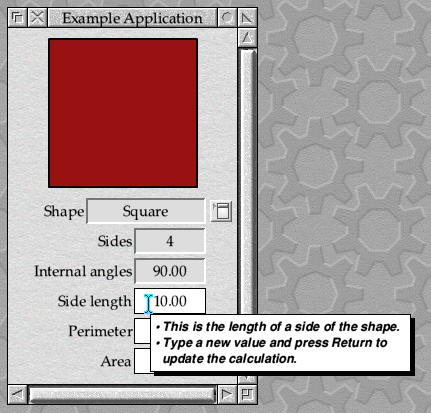
Figure 35.6: Specific help for the individual icons
The updates to the code can be found in Download 35.4.